日本語で表示
| App Information |


What is NETAMEMO?
| Application Name | NETAMEMO |
|---|---|
| Applications | Memo app for recording ideas for your blog. |
| Download the app | https://play.google.com/store/apps/details?id=com.mswss.netamemo |
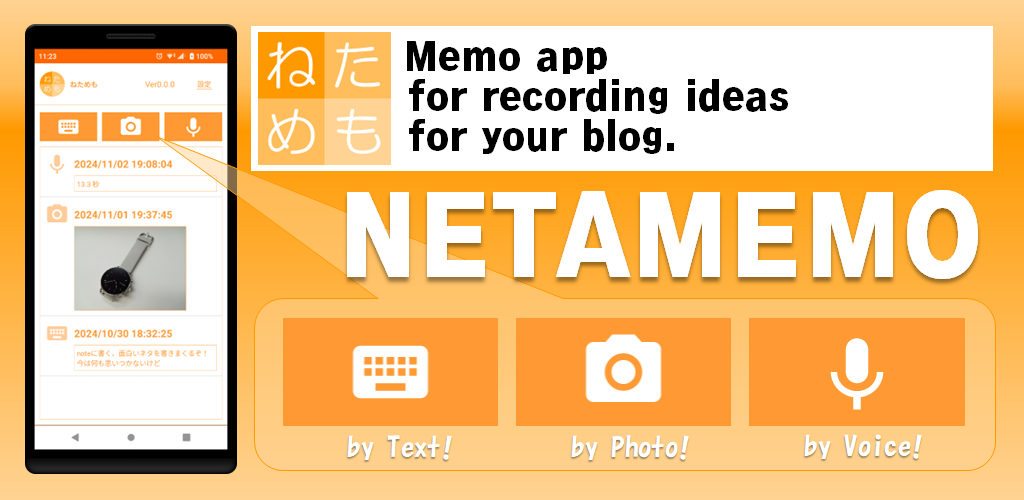
NETAMEMO is a free memo app.Its special feature is that you can leave memo by text, photo, and voice.
When you come up with an interesting idea, you have to memo it down right away or you'll forget it.
But... typing while walking is dangerous, and speaking out loud on the train is embarrassing.
NETAMEMO is a memo app that lets you choose the right method for different situations.
Use text memos when you can operate your smartphone at your leisure, photo memos when you want to keep what you see exactly as it is, and voice memos when you can't perform complex operations. You can manage all your blog ideas in one app. Quickly record what you want to know, write it down, and delete any memos you no longer need.
I made this for myself, but since I've made it, I'm going to make it public.
When you come up with an interesting idea, you have to memo it down right away or you'll forget it.
But... typing while walking is dangerous, and speaking out loud on the train is embarrassing.
NETAMEMO is a memo app that lets you choose the right method for different situations.
Use text memos when you can operate your smartphone at your leisure, photo memos when you want to keep what you see exactly as it is, and voice memos when you can't perform complex operations. You can manage all your blog ideas in one app. Quickly record what you want to know, write it down, and delete any memos you no longer need.
I made this for myself, but since I've made it, I'm going to make it public.
[Operation instructions]
First time launch
Granting permissions
This app uses a microphone, so you need to give us permission to use your microphone. If you don't give us permission, you won't be able to use this app.
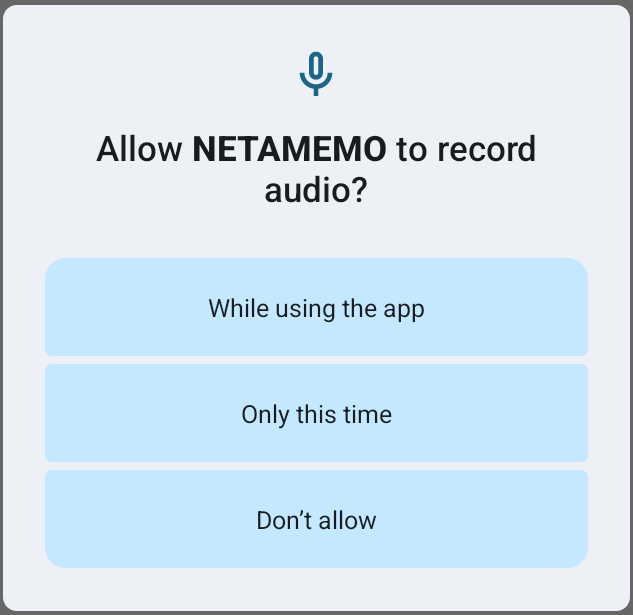 Tap "While using the app" to allow it. Then you can use the app. Proceed to the initial setup instructions.
If you do not allow this, the following dialog will be displayed and you will not be able to use the app.
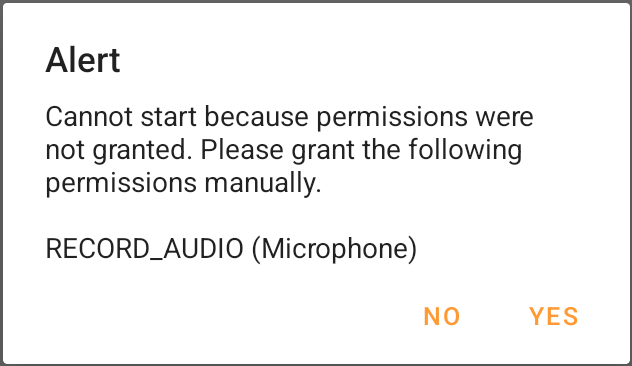 Tap [NO] to close the app.
If this dialog box appears, you can manually grant permission. To grant permission manually, tap [YES].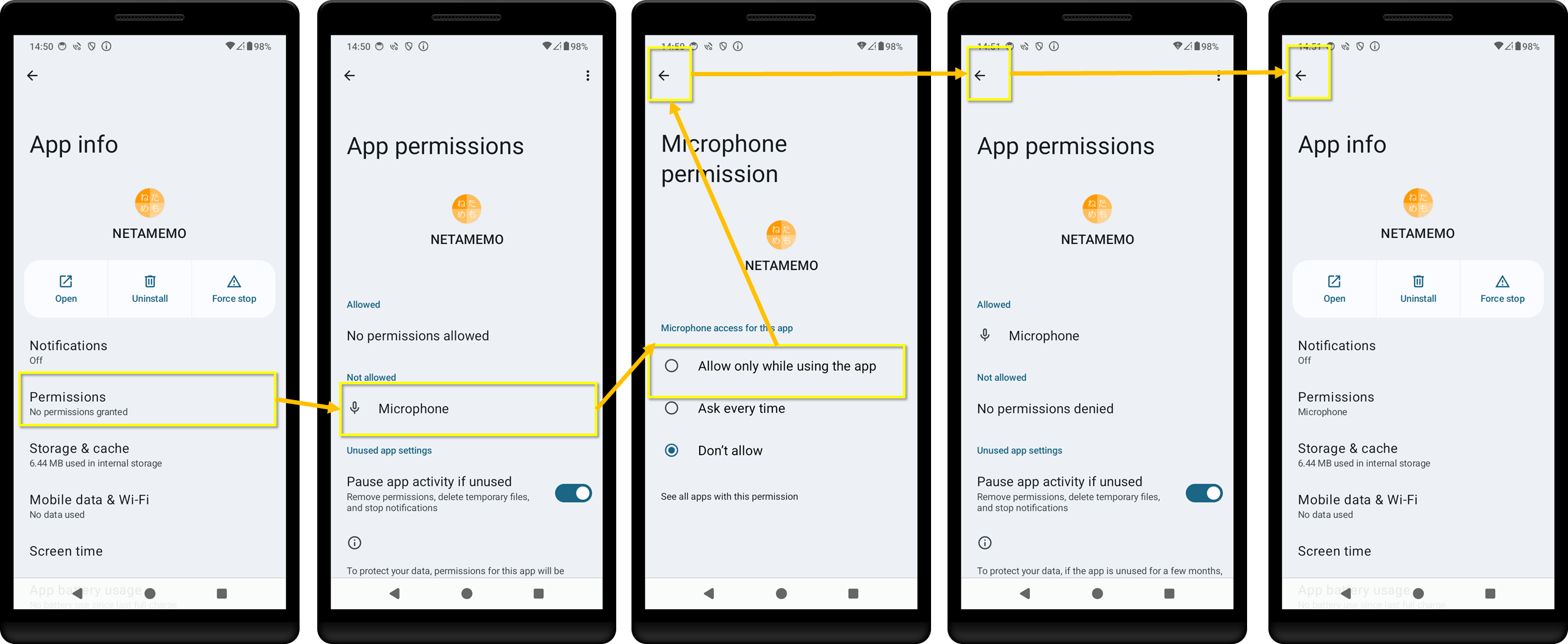 Tap [Permissions], tap [Microphone], and then tap [Allow only while using the app].
The permissions will now be granted, so tap [←], tap [←] again, and tap [←] again to exit the settings screen.
Then start NETAMEMO again.
If you do not allow this, the following dialog will be displayed and you will not be able to use the app.
If this dialog box appears, you can manually grant permission. To grant permission manually, tap [YES].
The permissions will now be granted, so tap [←], tap [←] again, and tap [←] again to exit the settings screen.
Then start NETAMEMO again.
Initial Setup
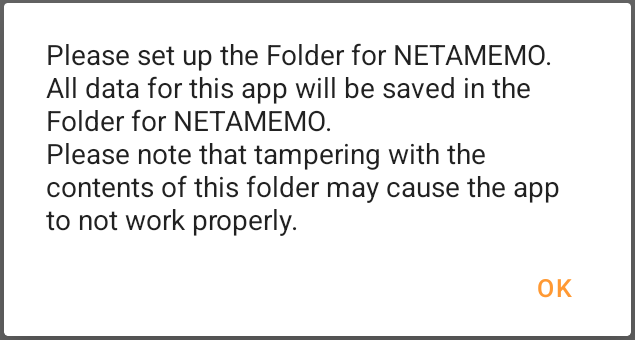
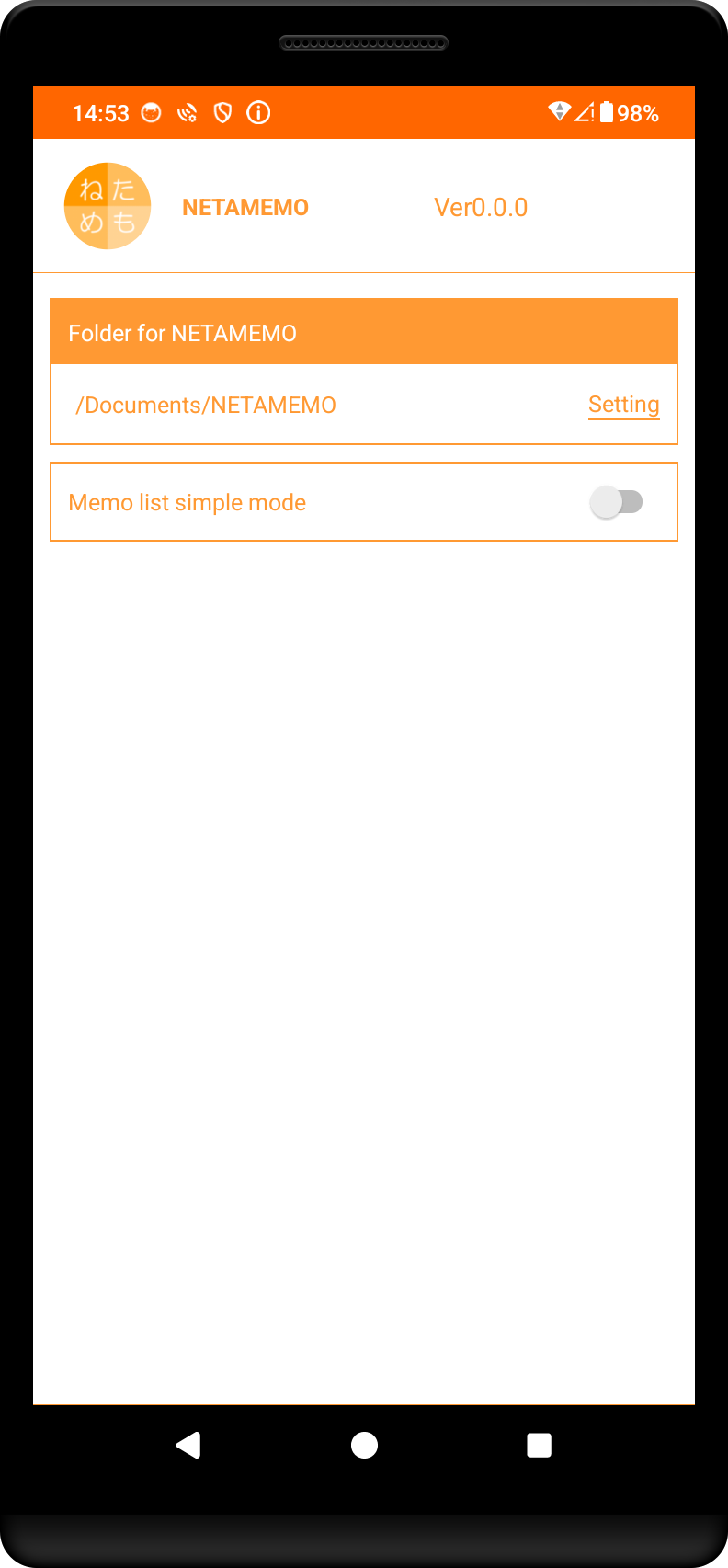
When you turn on "Memo list simple mode", only the icon and the date and time of the memo will be displayed in the main screen list. If you are concerned about the display time, please turn it on. NETAMEMO is intended to be used for quickly recording, writing an article, and then quickly deleting it. Please understand that if you accumulate too many, it will take a long time to display.
Main Screen
When you start the app, the main screen will appear immediately, and if you have any registered memos, they will be listed in descending order of the date and time they were registered.
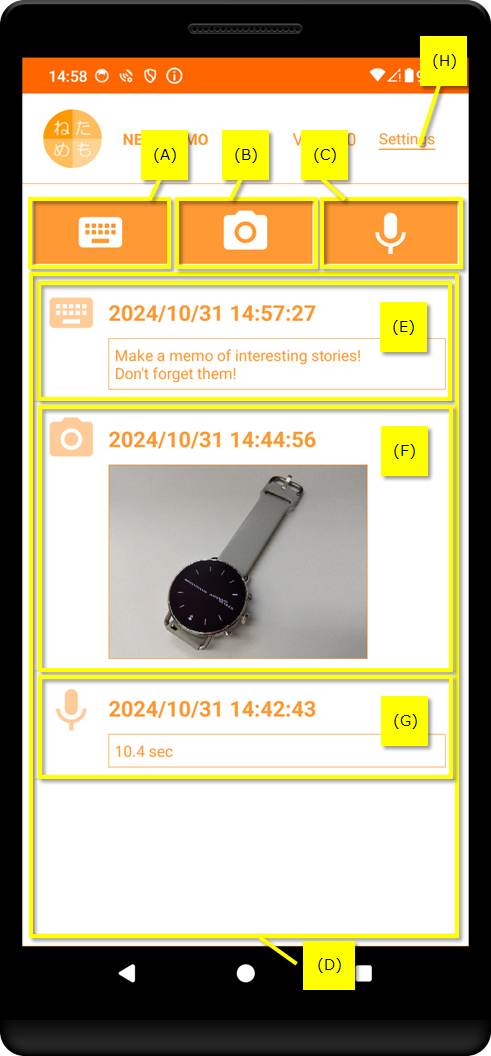 We will explain the screen display contents (A) to (H).
(A) Add text memo
When you tap, the Add Text Memo dialog box will appear.
(B) Add photo memo
Tap to display the camera app.
(C)Add voice memo
When you tap, the Add Voice Memo dialog box will appear.
(D)View all memos
This is a list of registered memos.
(E) Check/Edit text memo
When you tap, a text memo confirmation dialog will appear.
(F) Check/Edit photo memo
When you tap, the photo memo confirmation dialog will appear.
(G) Check/edit voice memo
When you tap, the voice memo confirmation dialog will appear.
(H) Settings
When you tap it, the settings screen explained in the first launch section will appear, allowing you to change the settings.
Advertisements using Google's [AdMob] are displayed at the bottom of the screen. The developer will block inappropriate ads, but please use your own discretion before tapping on them. The developer is not responsible for any damages resulting from the use of this app, including the content of the ads.
Dialog for adding text memo
This is the screen for adding text memo.
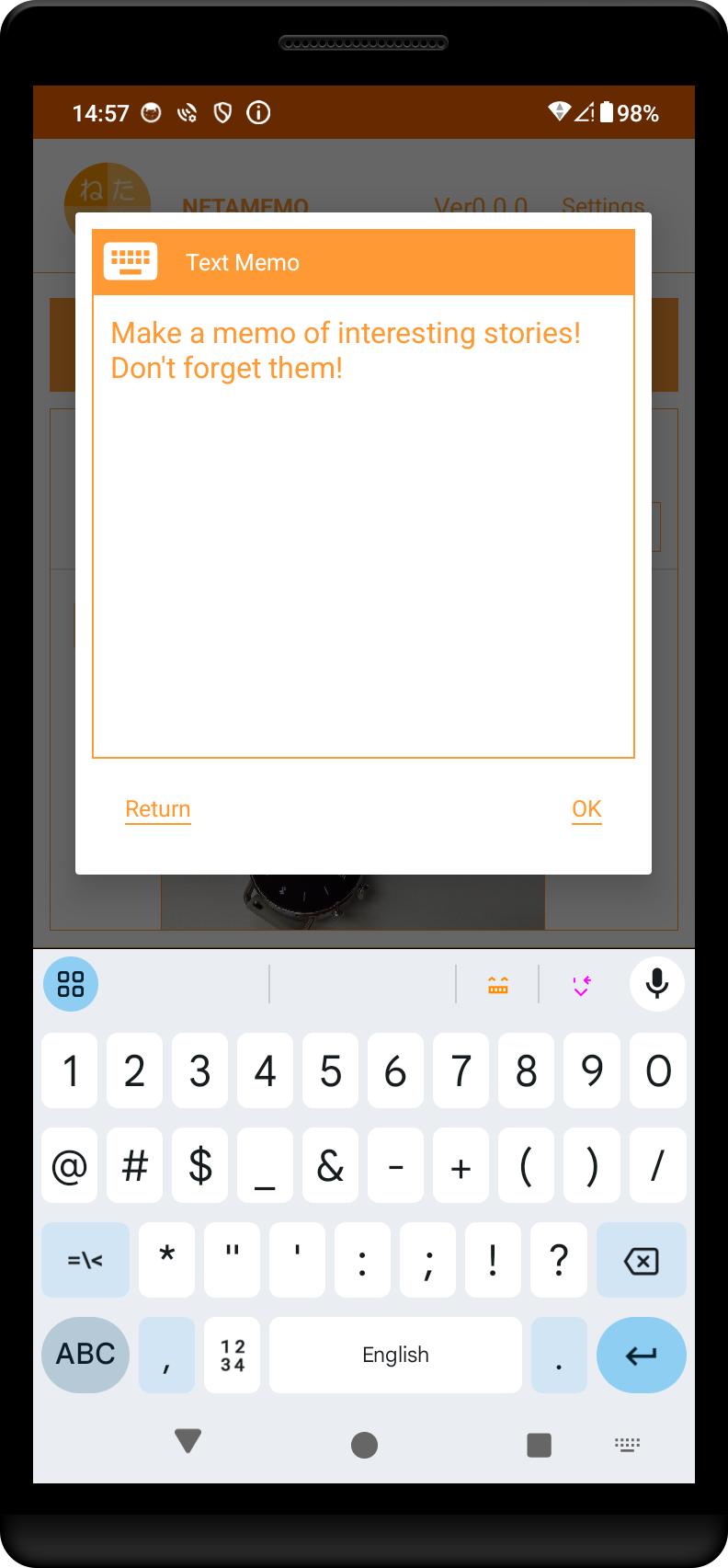 You can enter text memo using the software keyboard. You can also enter line breaks.
Tap [OK] to create the text memo and return to the main screen. The memo will be added to the top of the main screen.
Tapping [Return] will discard the input and return to the main screen.
Tap [OK] to create the text memo and return to the main screen. The memo will be added to the top of the main screen.
Tapping [Return] will discard the input and return to the main screen.
Camera app (add photo memo)
The standard camera application on your smartphone will launch.
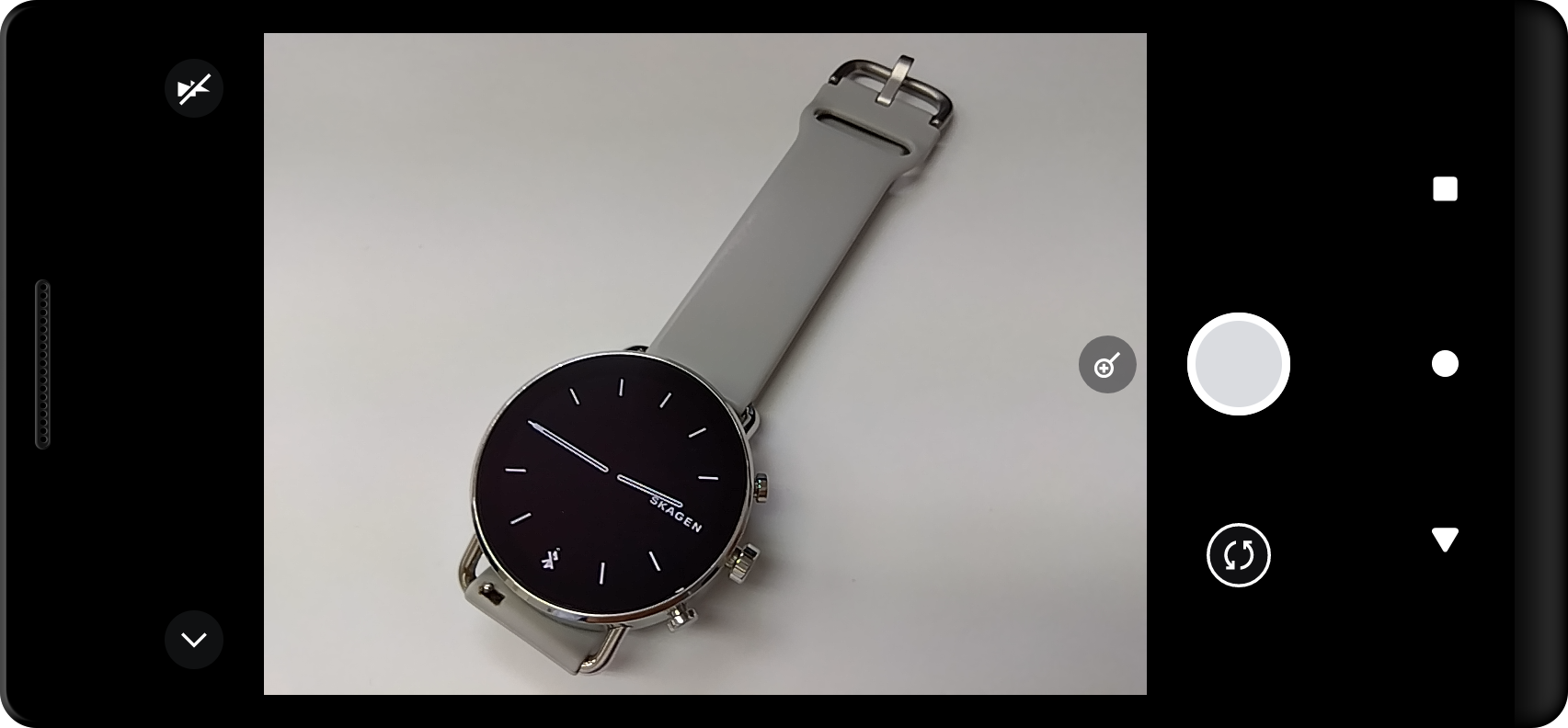 When you take a photo, a photo memo will be created with the photo and you will return to the main screen. The memo will be added to the top of the main screen.
If you return without taking a photo, you will return to the main screen without doing anything.
If you return without taking a photo, you will return to the main screen without doing anything.
Dialog for adding voice memo
This is the screen for recording a voice memo. Recording will start as soon as it appears.
 Tap [OK] or wait 60 seconds to create the voice memo and return to the main screen. The voice memo will be added to the top of the main screen.
Tap [Return] to discard the recording and return to the main screen.
Tap [Return] to discard the recording and return to the main screen.
Text memo confirmation dialog
This is the screen for editing text memo.
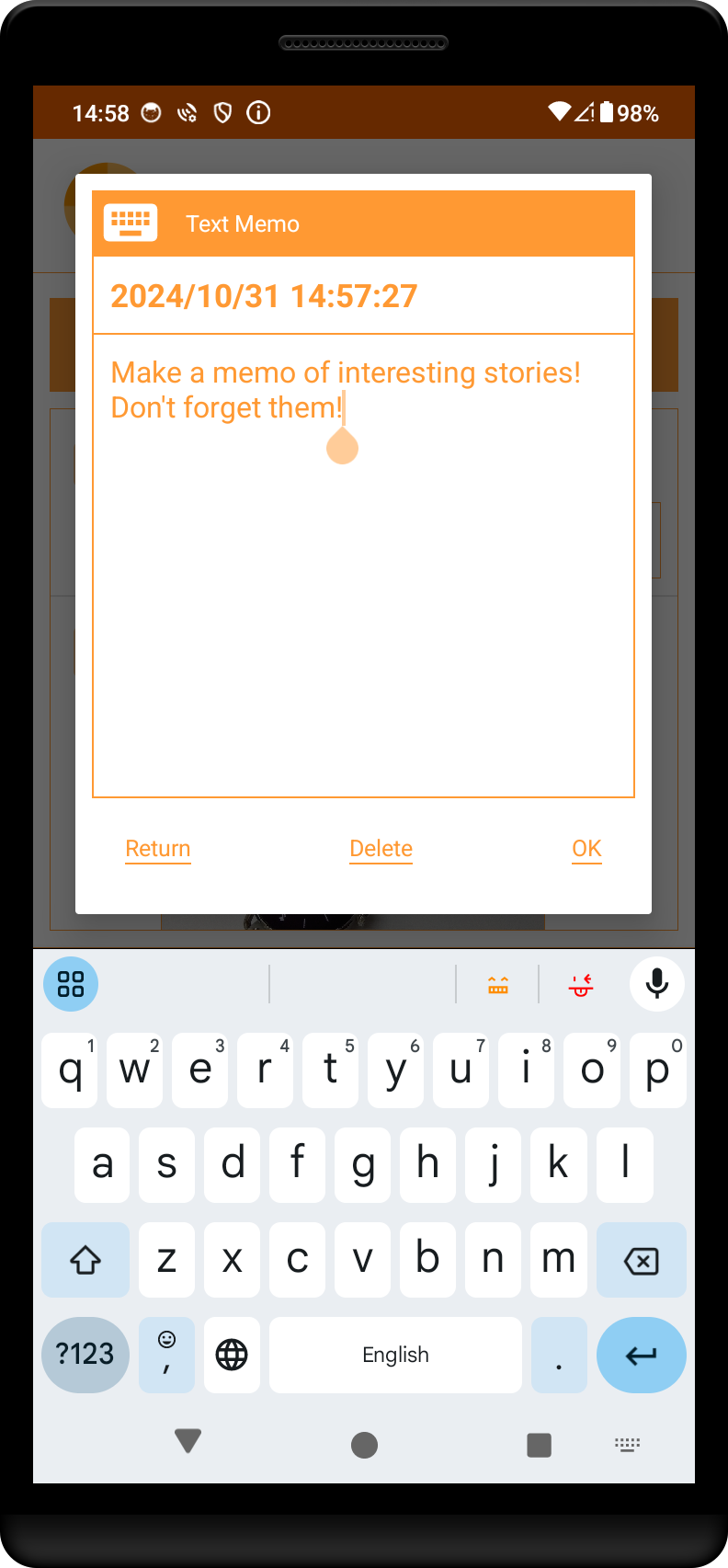 You can edit the text memo.
Tapping [OK] will update the text memo and return to the main screen.
Long tap [Delete] to delete the text memo and return to the main screen.
Tapping [Return] will discard the input and return to the main screen.
Tapping [OK] will update the text memo and return to the main screen.
Long tap [Delete] to delete the text memo and return to the main screen.
Tapping [Return] will discard the input and return to the main screen.
Photo memo confirmation dialog
This is the screen for viewing photo memo.
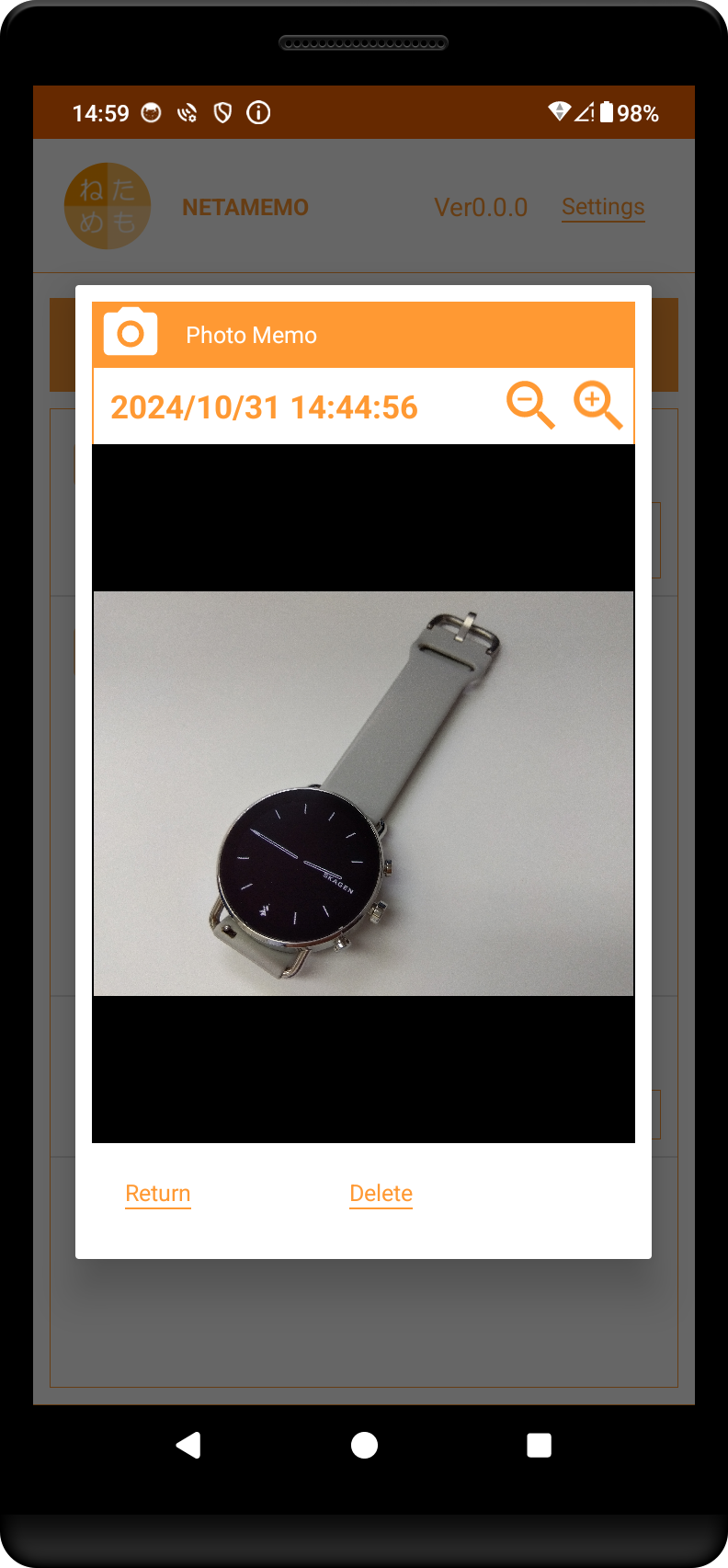 The photo memo will be displayed.
You can zoom in and out using the magnifying glass icon in the upper right.
If you enlarge the photo, you can move it by swiping.
Long tap [Delete] to delete the photo memo and return to the main screen.
Tapping [Return] will return you to the main screen without doing anything.
You can zoom in and out using the magnifying glass icon in the upper right.
If you enlarge the photo, you can move it by swiping.
Long tap [Delete] to delete the photo memo and return to the main screen.
Tapping [Return] will return you to the main screen without doing anything.
Voice memo confirmation dialog
This is the screen for playing back voice memo.
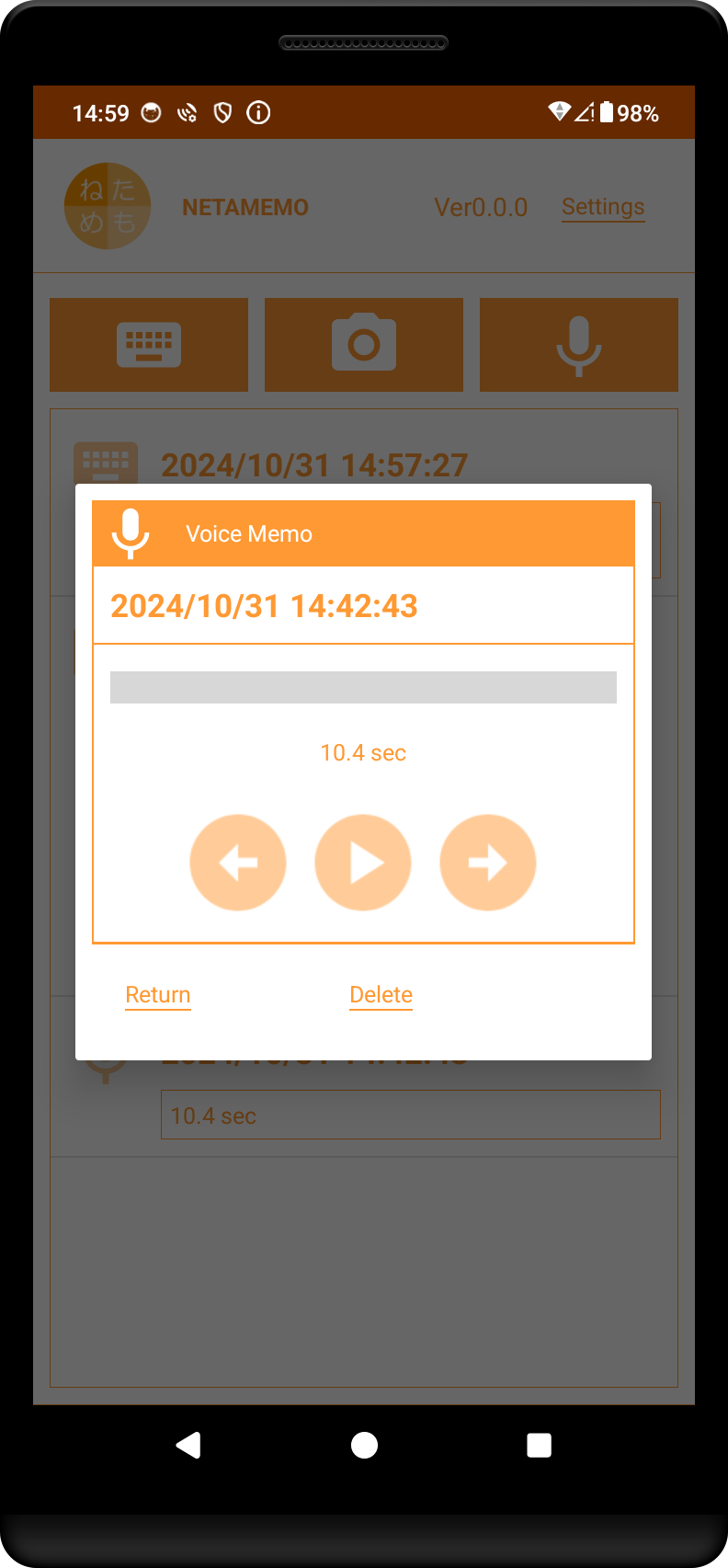
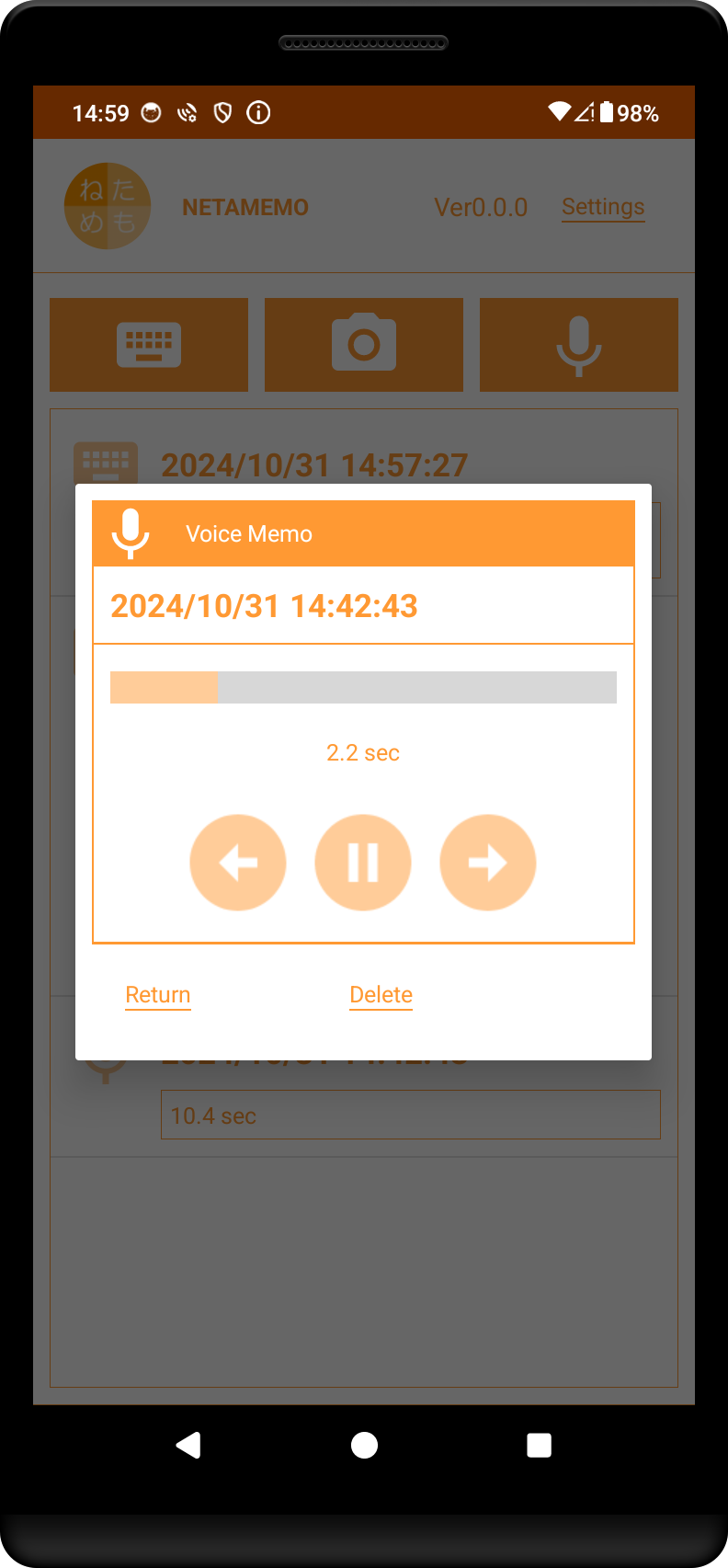 Tap the play button in the middle to begin playing the voice memo.
Playback will stop when you tap the stop button in the middle during playback, or when playback is complete.
Tapping the left or right button will skip forward or backward in 5 second increments.
Long tap [Delete] to delete the voice memo and return to the main screen.
Tapping [Return] will return you to the main screen without doing anything.
Playback will stop when you tap the stop button in the middle during playback, or when playback is complete.
Tapping the left or right button will skip forward or backward in 5 second increments.
Long tap [Delete] to delete the voice memo and return to the main screen.
Tapping [Return] will return you to the main screen without doing anything.
Copyright (C) 森山商店 All Rights Reserved.